I didn’t plan to test anything that day.
I was just late.
There were 37 minutes left before a client call. My notes were scattered across a doc—some headings, half-written sentences, and a few points I wasn’t even sure I wanted to include. No slides. No structure. Just… ideas.
Normally, I would open PowerPoint and start building slide by slide. You know the routine. Paste text. Resize boxes. Fix alignment. Then fix it again because something shifted. It’s not hard work, but it’s slow, and it drains you.
This time, I paused. Not because I had a better plan—because I didn’t have time for the usual one.
The Problem Wasn’t Design. It Was Friction.
People often say slide-making is easy. I disagree.
The issue isn’t creating slides. It’s everything around it:
- Deciding what becomes a slide
- Cutting down paragraphs into something readable
- Keeping layouts consistent across 20+ pages
- Fixing those tiny formatting glitches that somehow take forever
I remember copying one section into PowerPoint that day. The bullets looked off. Spacing broke. The font changed slightly for no reason. I fixed it. Then the next slide had the same issue.
That’s when it hit me—I wasn’t building a presentation. I was debugging formatting.
Why I Finally Tried an AI PPT Maker
I had bookmarked an AI PPT maker a while back. Never really trusted it, to be honest. Most tools I tried before felt like templates pretending to be smart.
But this wasn’t about curiosity anymore. It was about time.
So I copied everything—messy notes, rough structure, incomplete thoughts—and pasted it in.
No cleanup. No preparation.
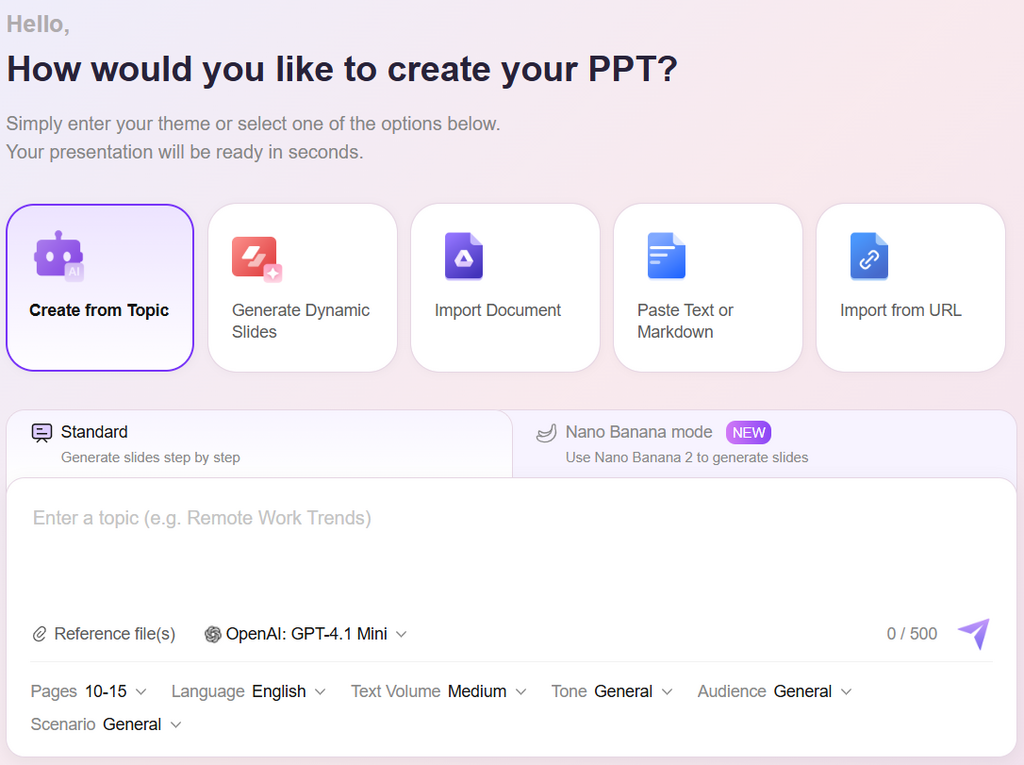
The Output: Not Perfect, But Unexpectedly Usable
A few minutes later, I had a full slide deck.
Around 30 slides.
I didn’t react immediately. I just scrolled.
Then I scrolled again.
What stood out wasn’t the design—it was the structure:
- Each idea had its own slide
- Long paragraphs were broken into clean bullet points
- Headings actually reflected the content
- The flow… mostly made sense
One section I wrote as a single block of text got turned into three slides:
- A clear headline
- Supporting points
- A short explanation
That’s exactly what I would have done. Just slower. Much slower.
What It Actually Helped With (And What It Didn’t)
Let’s be real—it didn’t magically solve everything.
But it removed the most annoying parts:
What it handled well:
- Splitting content into slide-sized chunks
- Creating a logical flow
- Keeping formatting consistent
- Turning raw text into readable bullets
What still needed work:
- Some slides felt slightly generic
- A few points needed rewriting
- Data-heavy sections weren’t perfect
Still, I was editing—not starting from zero.
That’s a big difference.
The Workflow I Ended Up Using (After That Day)
I’ve repeated this process a few times since, and it’s become surprisingly consistent.
Step 1: Start messy
I don’t organize anything upfront anymore. Just write.
Notes, ideas, fragments—it all goes in.
Step 2: Generate slides
Paste content into an AI presentation generator and let it build the structure.
At this stage, I don’t care about design. Only flow.
Step 3: Trim aggressively
This part matters more than I expected.
I usually delete:
- Repetitive slides
- Weak transitions
- Anything that doesn’t move the story forward
Takes 3–4 minutes.
Step 4: Fix the narrative
Now I adjust:
- Slide order
- Headings
- Emphasis
This is where it stops feeling “generated.”
Step 5: Apply design last
Only after structure feels right:
- Update master slides
- Adjust fonts and colors
- Add simple visuals
Because everything is already structured, this part is fast.
Time Comparison (Before vs After)
Before:
- 60–90 minutes
- Constant formatting fixes
- Inconsistent slides
Now:
- Around 10–15 minutes
- Mostly editing
- Cleaner structure from the start
The time saved is obvious. But honestly, the bigger win is mental.
A Small Realization That Changed My Process
I used to start with design.
Pick a template. Adjust layout. Then add content.
Now I do the opposite:
- Structure
- Message
- Design
Using an AI PPT maker forced that shift. And it made my slides better—even when I tweak them manually afterward.
Why This Isn’t Just About Speed
Yes, saving an hour is nice.
But the real benefit is focus.
Instead of worrying about:
- Alignment
- Spacing
- Font sizes
I spend time on:
- What the audience actually needs
- Whether the message is clear
- How the story flows
That’s a different kind of work.
One Thing That Helped Me Improve Further
After a few runs, I realized I still needed to understand slide structure better.
This guide from Microsoft helped clarify how layout and hierarchy work in presentations: PowerPoint slide design basics
It’s worth a quick read if your slides ever feel “off” and you can’t explain why.
Would I Rely on This Every Time?
Not always.
For high-stakes presentations, I still spend extra time refining. But as a starting point? It’s hard to beat.
Especially when time is tight.
If You Want to Test This Yourself
Next time you’re stuck with:
- A rough document
- Meeting notes
- A half-finished outline
Don’t open PowerPoint first.
Drop it into an AI tool and see what happens.
Worst case, you lose a couple of minutes.
Best case, you get a solid 30-slide deck—and skip the part where you fight with formatting for an hour.